From page image to usable text
Copy text from a scanned PDF on iPhone.
If a PDF's words cannot be selected, its pages may be scans. Recognize the text, open Reader Mode, then copy the paragraph you need.
iPhone and iPad · iOS/iPadOS 26 or later. Three standard documents can be fully processed free. Full-document TXT export requires Lifetime unlock.
Can you already select the words?
Try selecting a short sentence in your current PDF viewer. If selection and copying work, use that existing text; you may not need another OCR pass.
If the page behaves like a photograph, OCR can recognize its visible words. Some PDFs mix scanned pages with selectable text, so test the page you actually want to copy rather than only the cover.
For a small amount of text in a photo
Apple's Live Text can copy text from photos and videos on supported devices and languages. That may be enough for a short passage. ReflowPDF provides a document reading workflow when you want recognized paragraphs, reading settings and access to the original PDF.
Not sure what OCR adds to a reading view? Compare OCR, reflow and searchable PDF.
Recognize. Long-press. Copy.
Use a clear, short document first, and check the pasted text before relying on it.
- 01
Import the scan
Import a PDF from Files, or use the system share sheet to open it in ReflowPDF. You can also import images.
- 02
Recognize its text
Open the document and start recognition. Processing stays on your device. Time varies with scan quality, page count, layout and hardware.
- 03
Copy a whole paragraph
Switch to Reader, find the passage, and long-press its paragraph. Choose Copy Paragraph from the action menu. The menu also keeps the bookmark action available.
- 04
Paste and verify
Paste into Notes or another text app. Compare names, dates, numbers and quotations with the original PDF before using the result.
Start with this one-page scan.
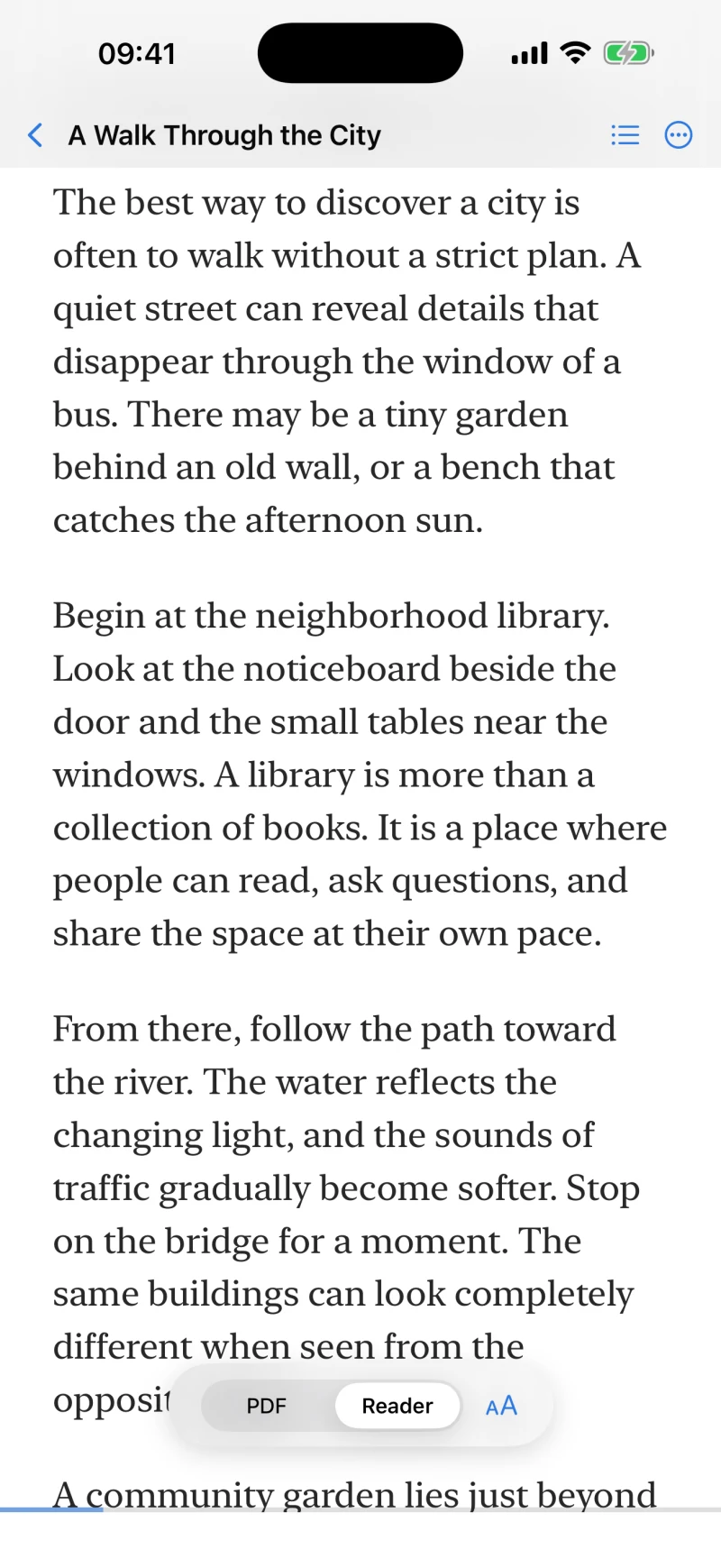
The original sample is an image-only PDF of a short essay, A Walk Through the City. The screen beside it shows the recognized text in ReflowPDF 1.4.
Import it, open Reader, long-press the opening paragraph and choose Copy Paragraph. You can compare your pasted text with the paragraph at the top of this guide.
The current action copies an entire paragraph. It is not a drag-to-select tool for individual words or an automatic copy of the whole book.
Original text created for this demonstration. Processing the sample uses one free standard-document slot unless Lifetime is unlocked.
Copy Paragraph and TXT export solve different tasks.
| Action | Result | Requirement |
|---|---|---|
| Copy Paragraph | The text of the paragraph you long-pressed. | Recognized text available in Reader Mode. |
| Export TXT | A plain-text file for the complete recognized document. | Complete recognition and Lifetime unlock. |
| Export searchable PDF | A PDF with original pages and recognized text for search. | Complete recognition and Lifetime unlock. |
For the exported PDF workflow, see how to make a scanned PDF searchable. To focus on reading rather than copying, use the scanned-PDF reading guide.
Clear pages can still contain recognition errors.
Small print, unusual fonts, multiple columns and tables can affect recognition and reading order. Copying preserves the recognized result; it does not guarantee that the text is an exact transcription.
If an important number or phrase differs from the source, correct it in your destination app after checking the page. If no text was found, try a clearer source or a page with larger printed text. ReflowPDF does not bypass password protection or restrictions on a document.
Common questions.
Can I copy just a word or sentence?
ReflowPDF's Reader action copies a whole paragraph. Paste it into your destination app and keep the part you need. A PDF viewer with selectable text may offer more granular selection.
Do I need to export TXT to copy a paragraph?
No. Use the paragraph's long-press menu in Reader Mode. TXT export is a separate option for a complete result and requires Lifetime unlock.
Can I copy and bookmark the same paragraph?
Yes. The paragraph action menu includes Copy Paragraph and Add Bookmark or Remove Bookmark. Copying does not replace your bookmark.
Can I export a large-document preview as the full text?
No. A limited preview is not the complete document. Complete processing and Lifetime unlock are required for full TXT or searchable PDF export.
Does the text have to be uploaded?
No. OCR and Reader Mode run on your device. ReflowPDF does not upload your documents or recognized text. If you paste or save into a cloud-connected app, that app follows its own settings.
Take the paragraph you need.
Try a short scan, copy a passage and check it against the source.
Get ReflowPDF